Upload a recording
Send one or more call recordings for analysis and say whose calls they are.
- Watch
- Try it
The voice is generated. Subtitles are on; switch them off in the player.
Click the highlighted spot, as you would in the app. After the first click, the arrow keys work too.
Steps
-
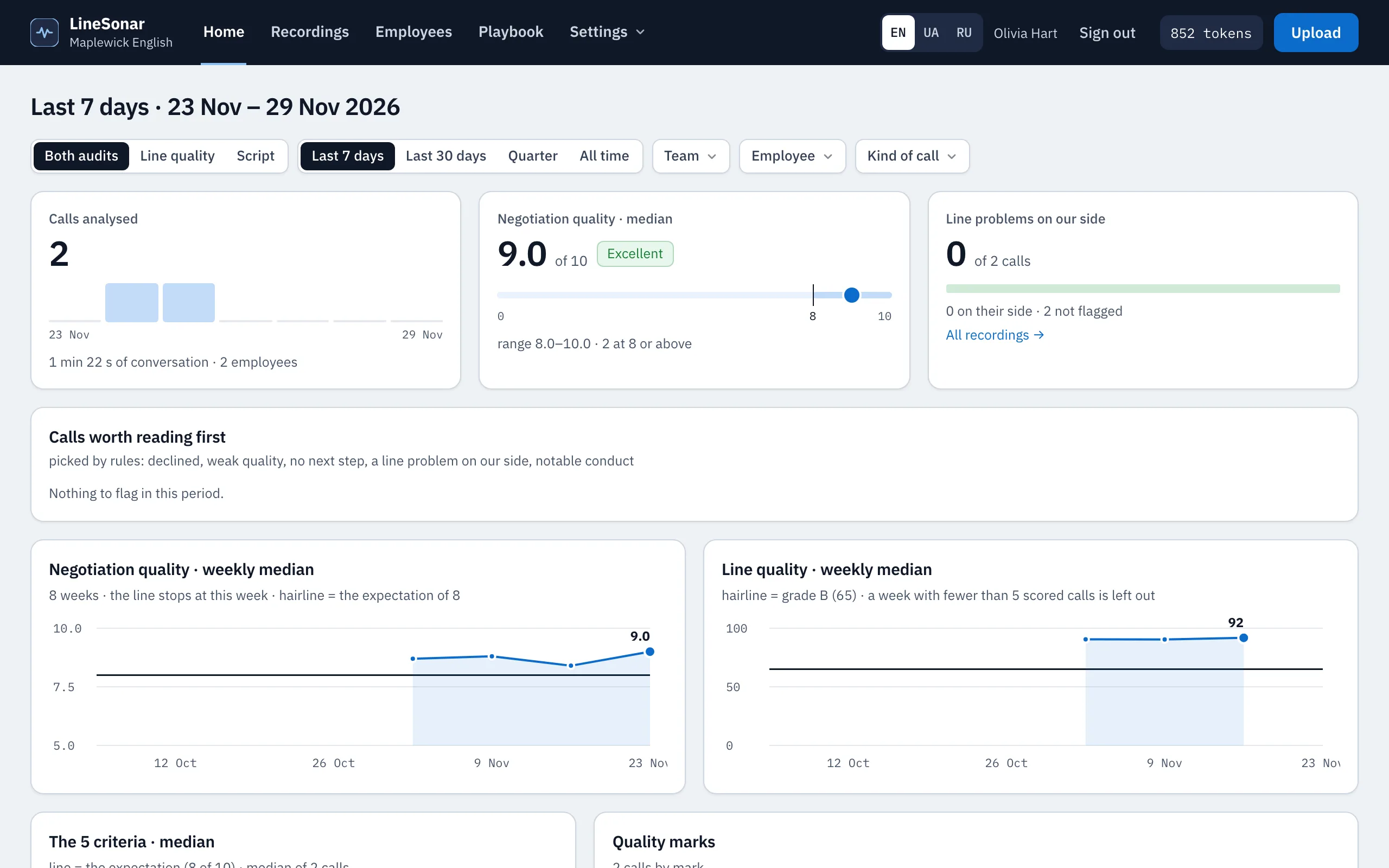
To analyse a call, click Upload in the top bar.
-
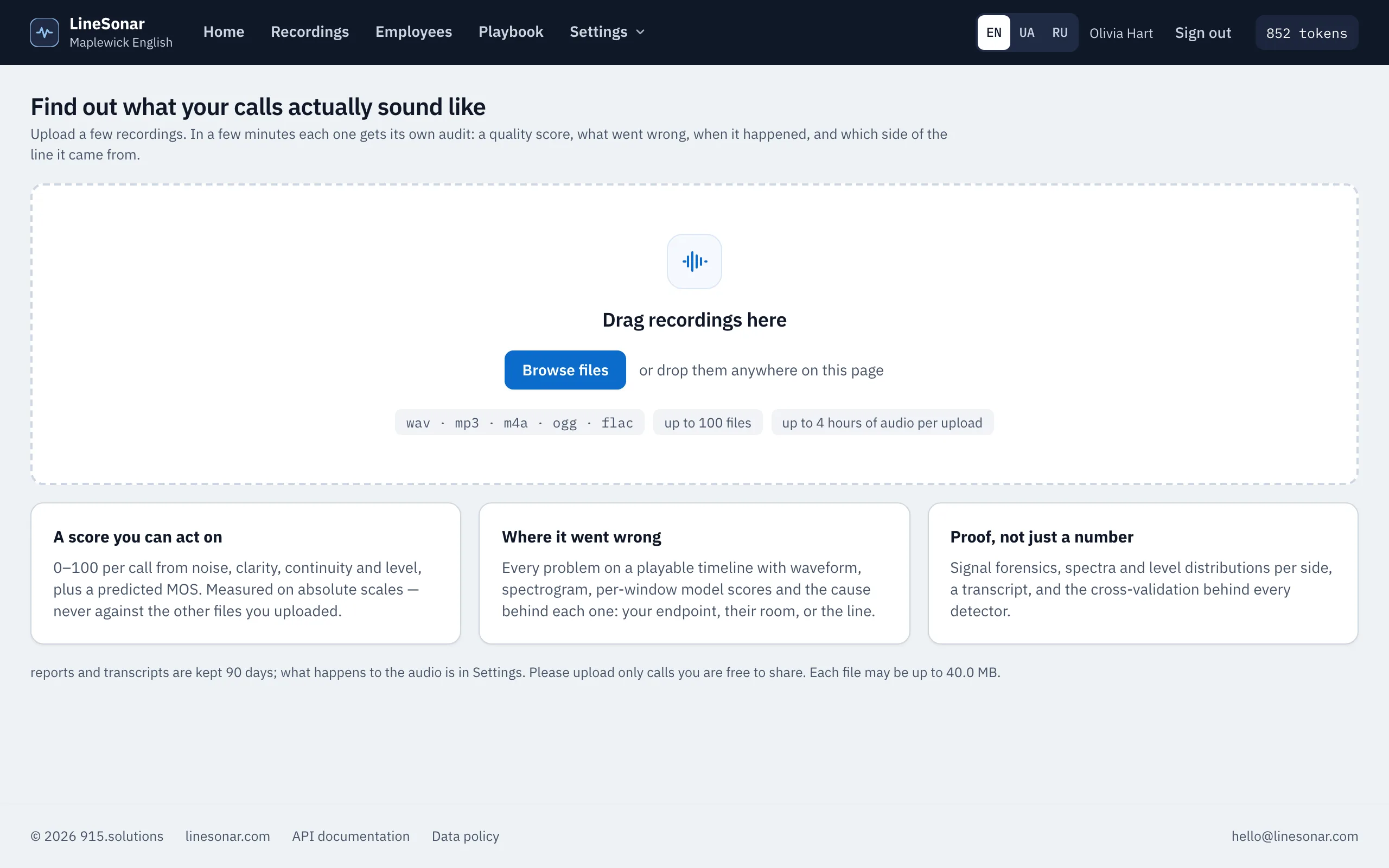
Click Browse files and choose one or more recordings. You can also drop them anywhere on the page.
-
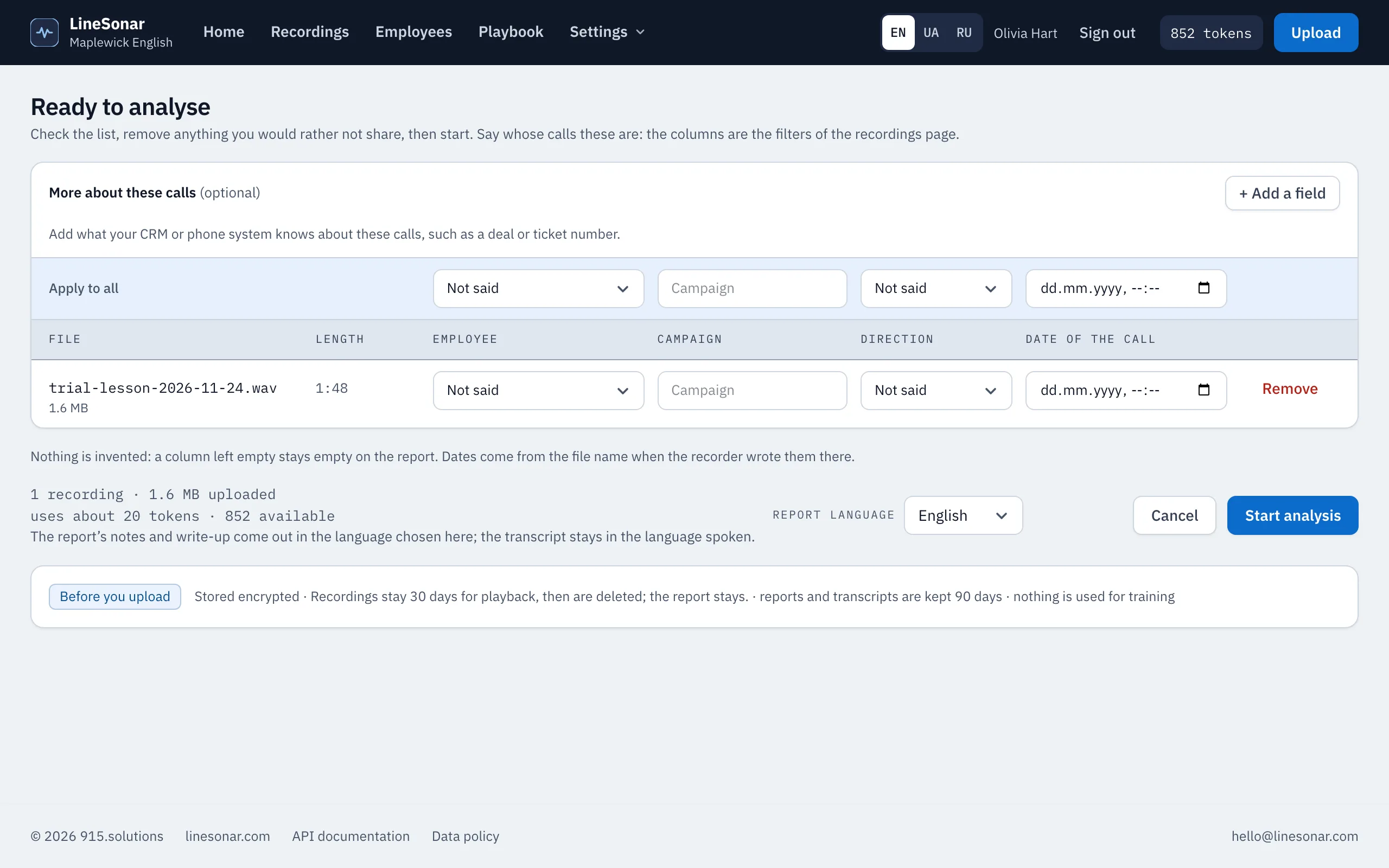
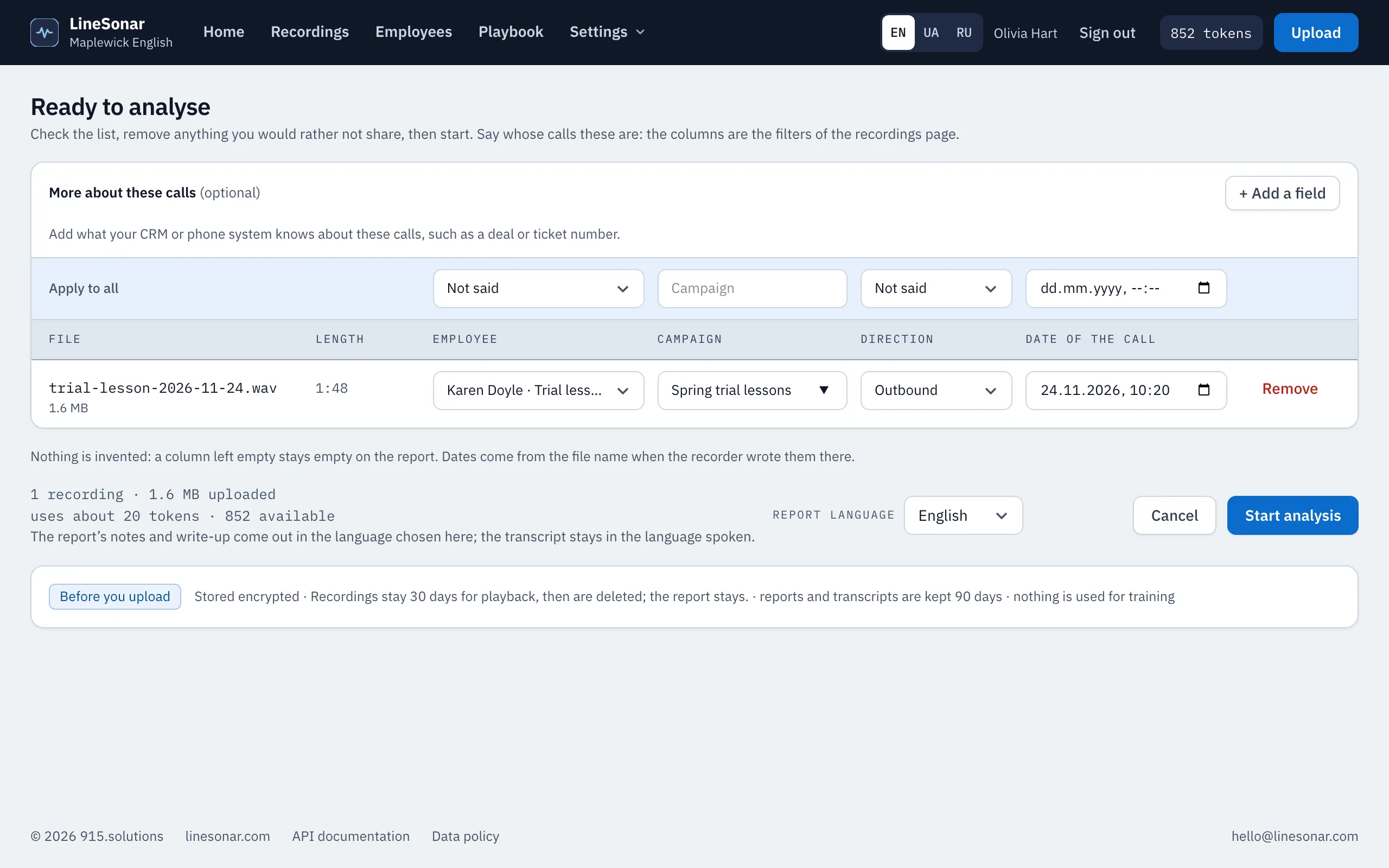
The files upload straight away. Check the list, and remove anything you would rather not share.
-
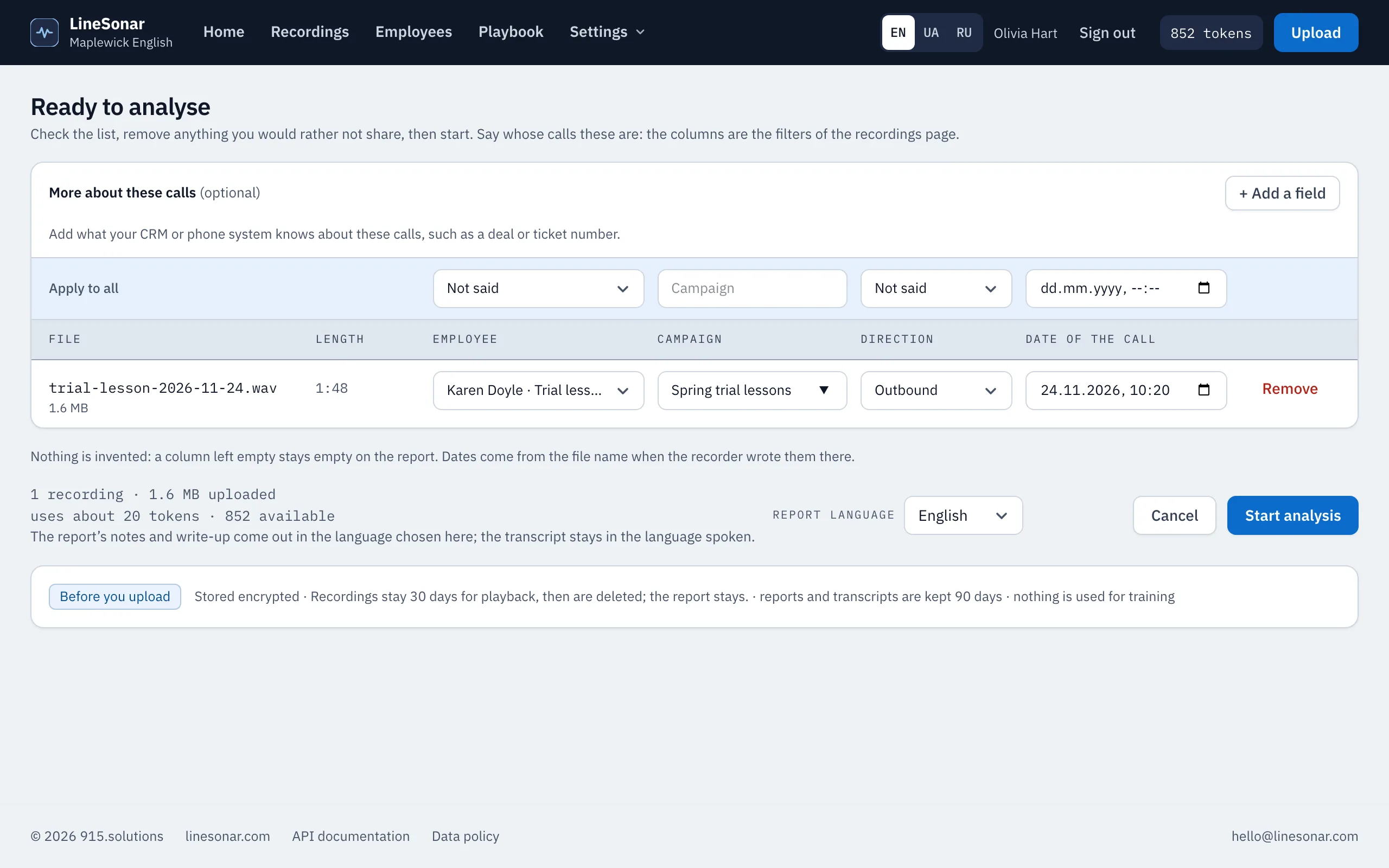
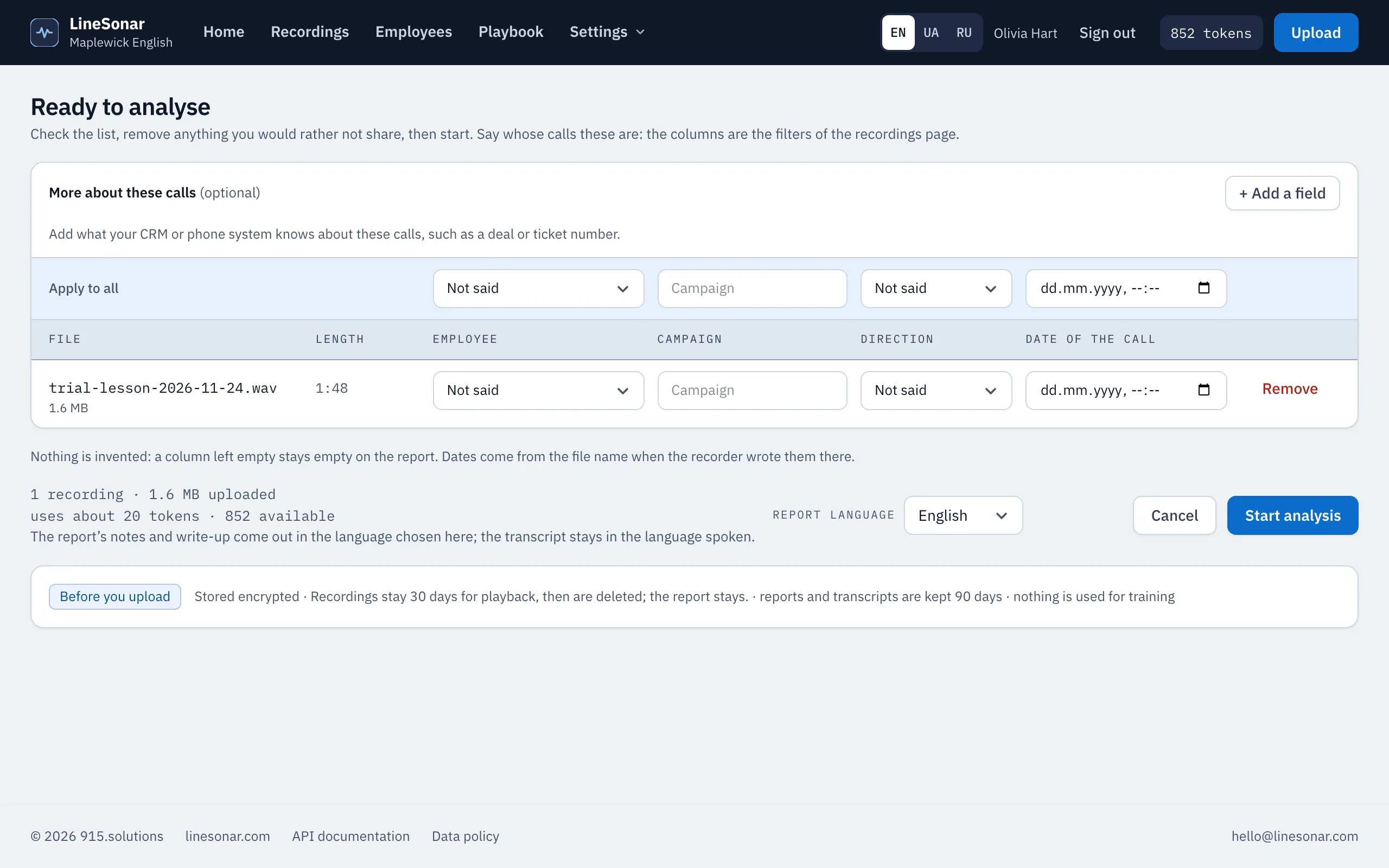
Say who made the call: pick the employee from the list.
-
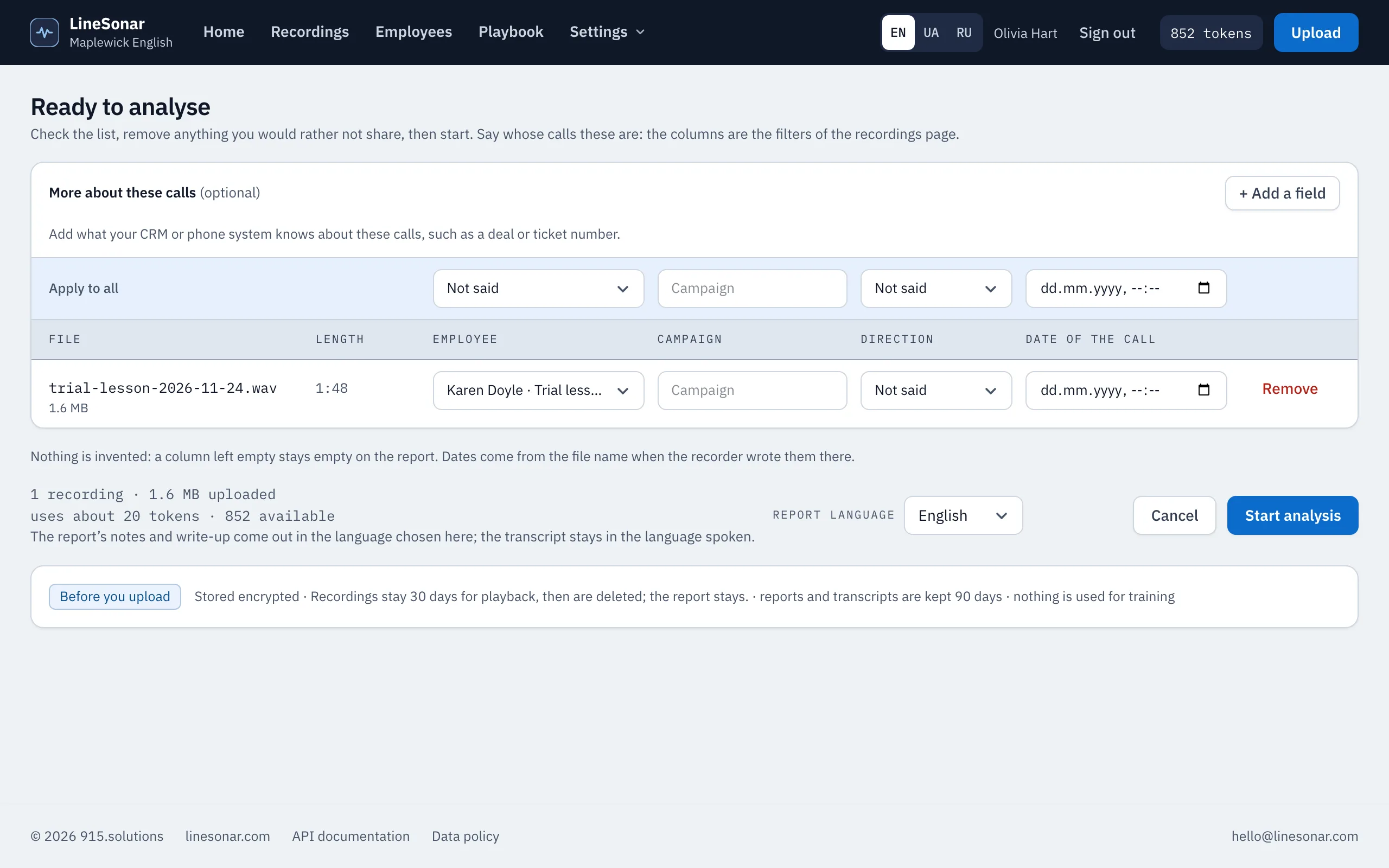
Add the campaign, if the call belongs to one.
-
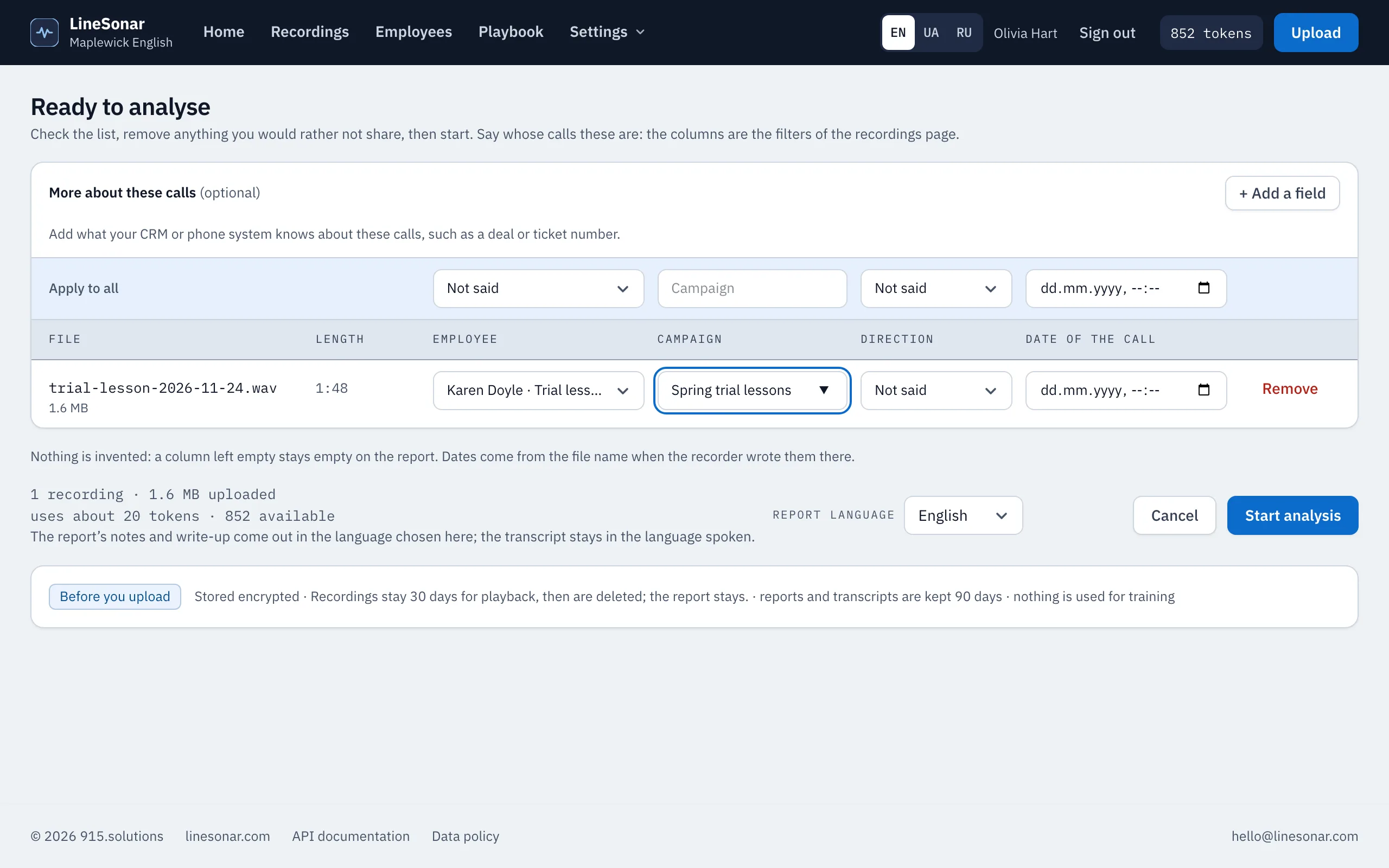
Choose whether the call was Outbound or Inbound.
-
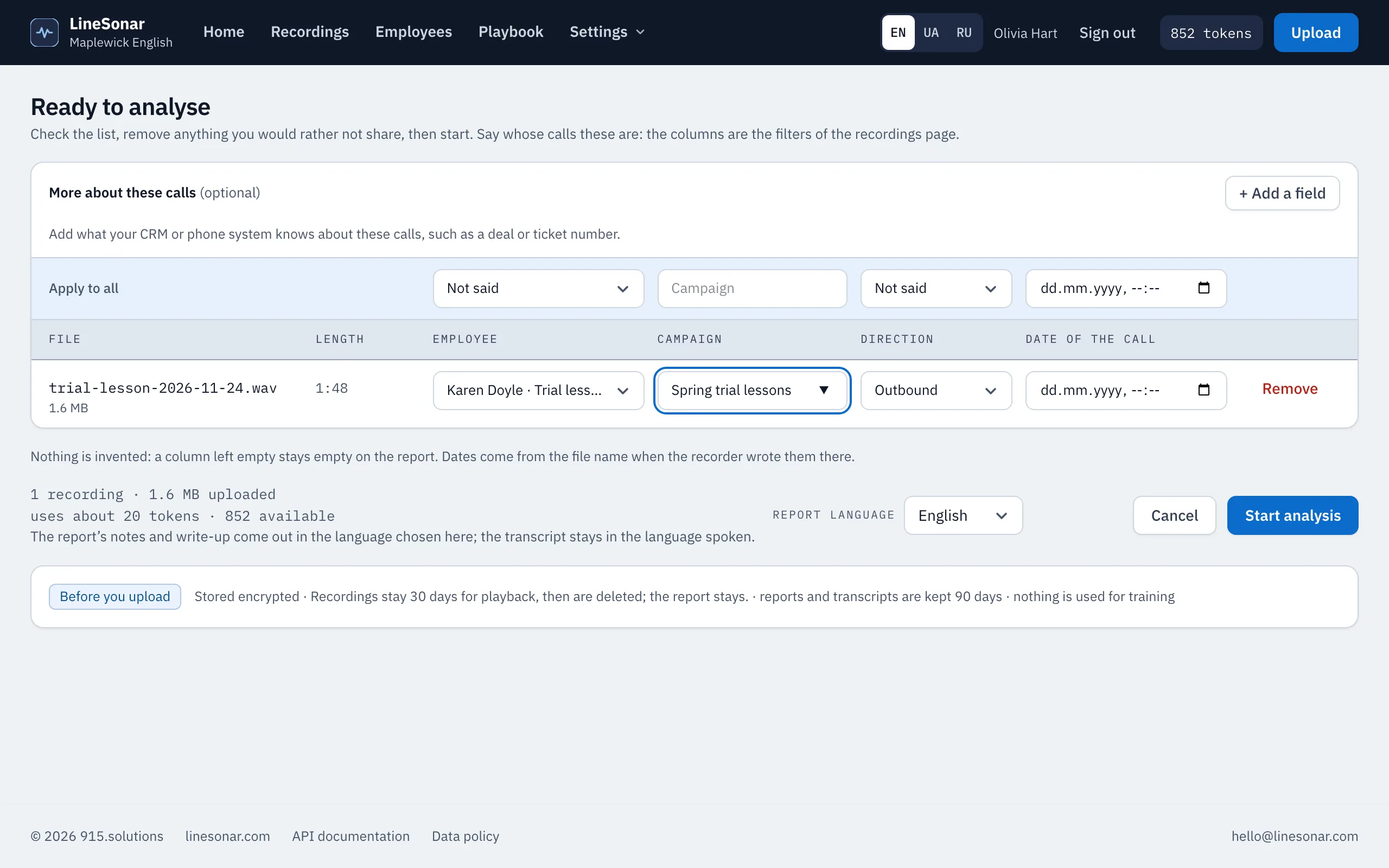
Set the date of the call. When the recorder put the date in the file name, it is filled in for you.
-
A field you leave empty stays empty on the report. With many files, the Apply to all row fills a field for every recording at once.
-
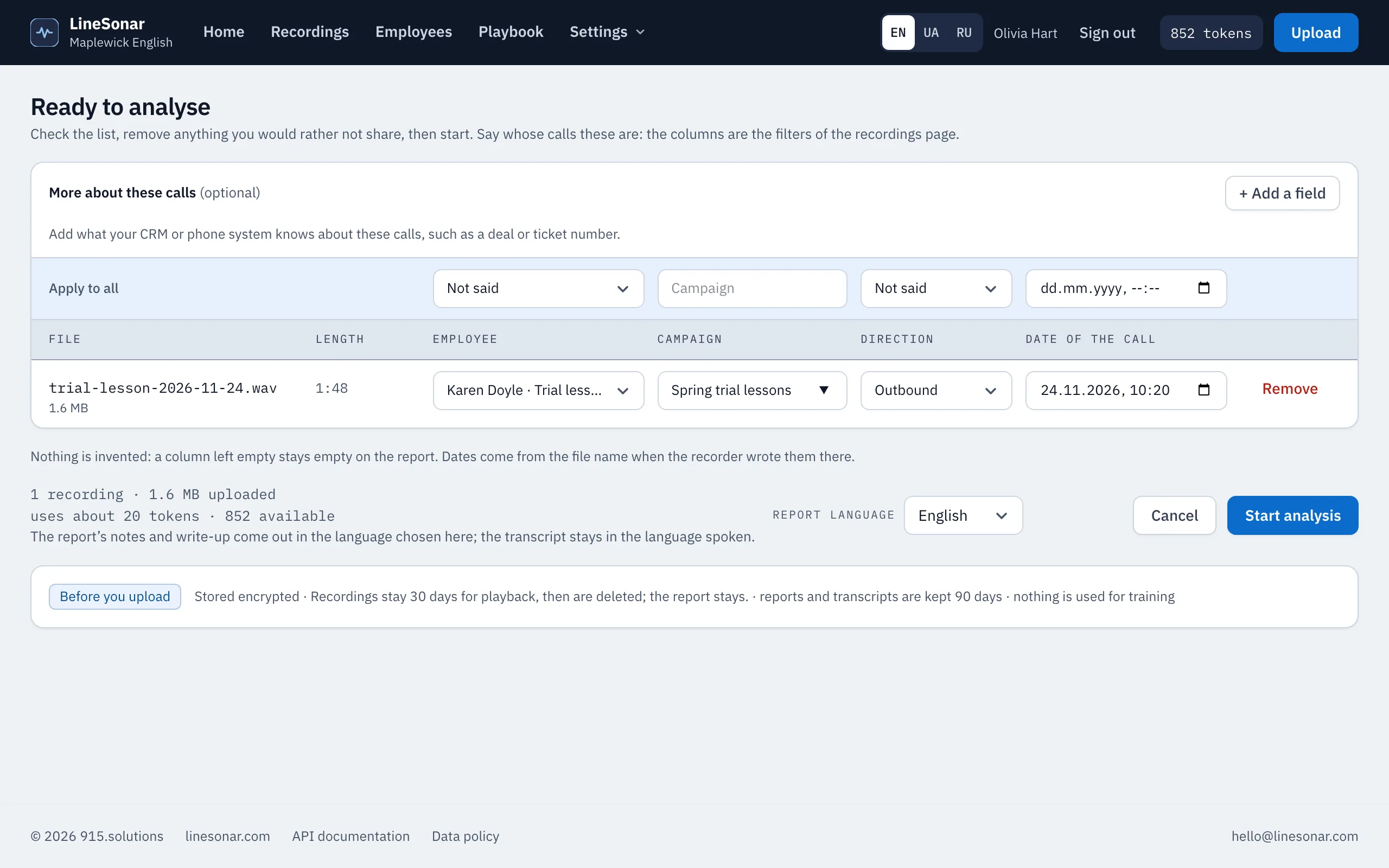
Pick the language of the report. The transcript stays in the language spoken on the call.
-
Check how many tokens the upload uses, then click Start analysis. Each recording gets its own report, which opens as soon as that call is done.