Your employees
The people whose calls you analyse: the team’s page, one person’s page, and adding someone.
- Watch
- Try it
The voice is generated. Subtitles are on; switch them off in the player.
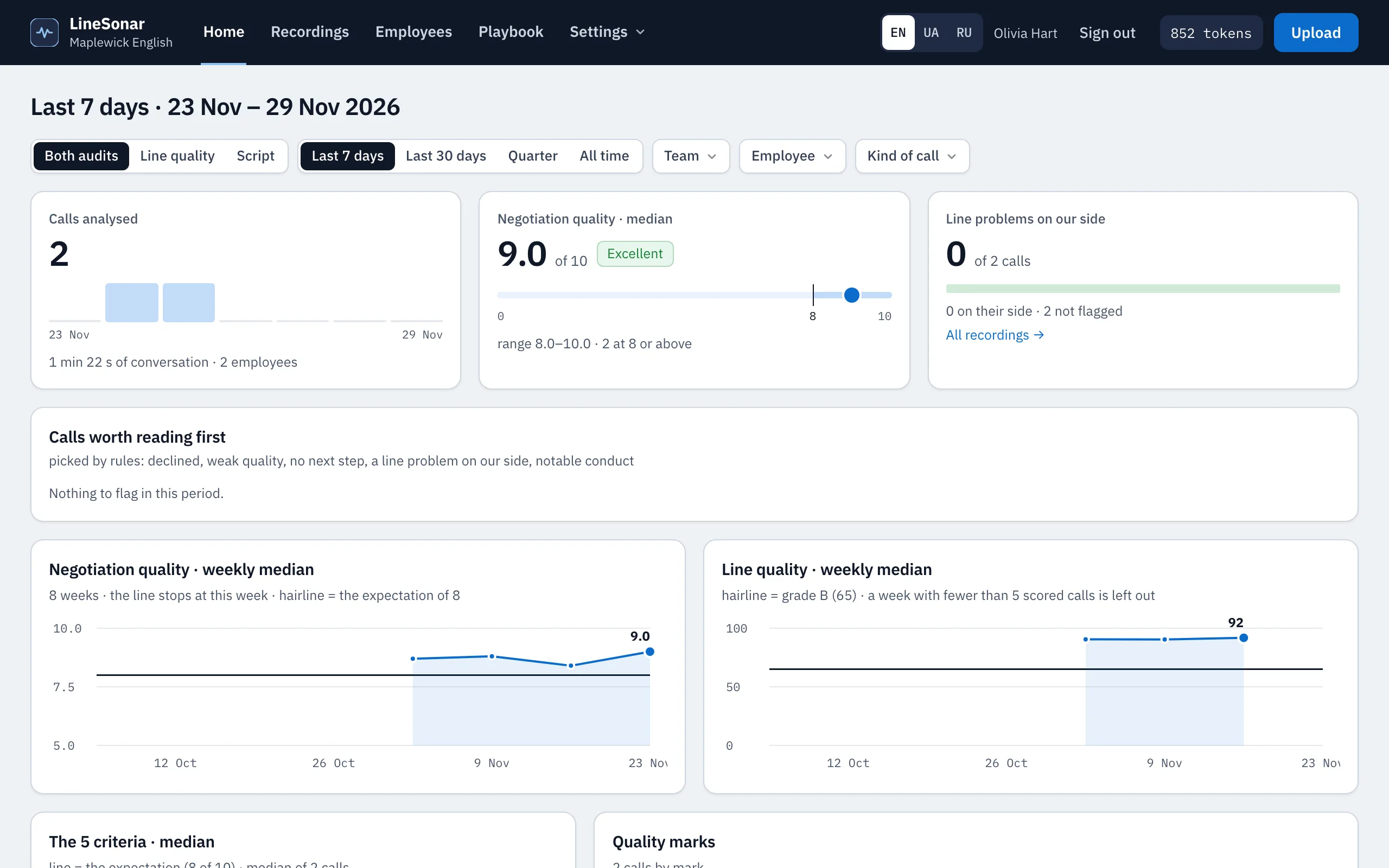
Click the highlighted spot, as you would in the app. After the first click, the arrow keys work too.
Steps
-
Click Employees in the top bar. Your account may call them Managers or Operators instead.
-
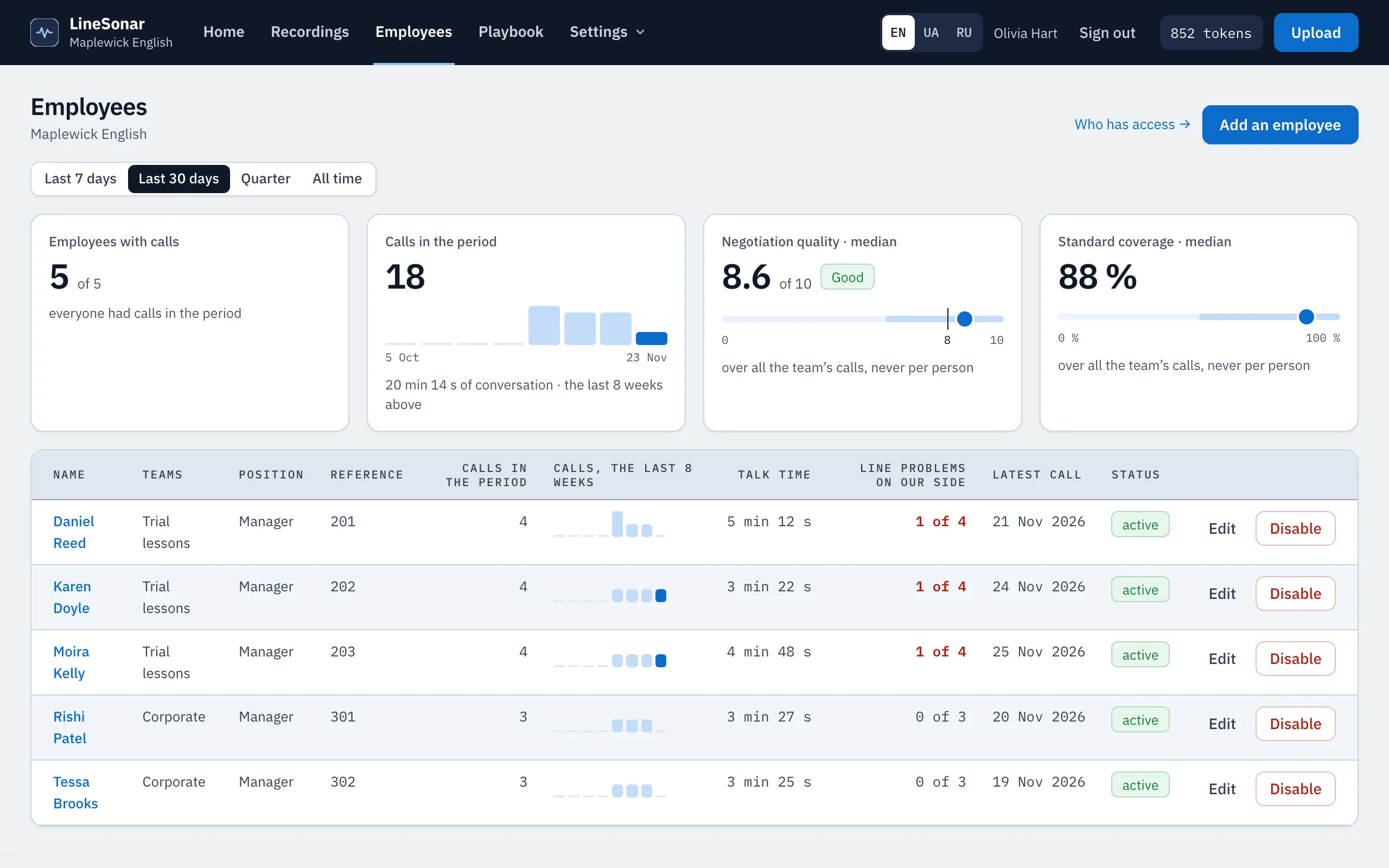
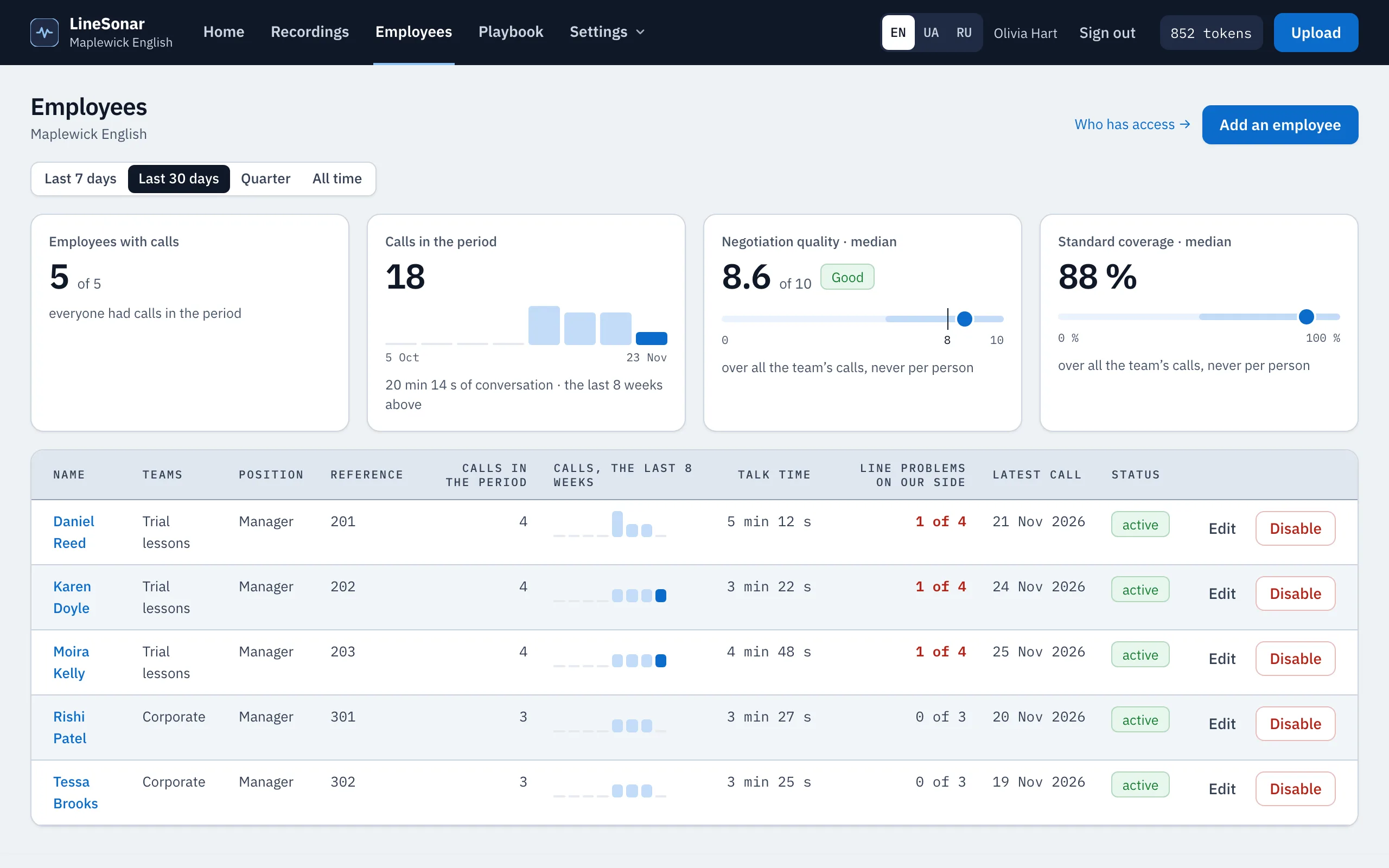
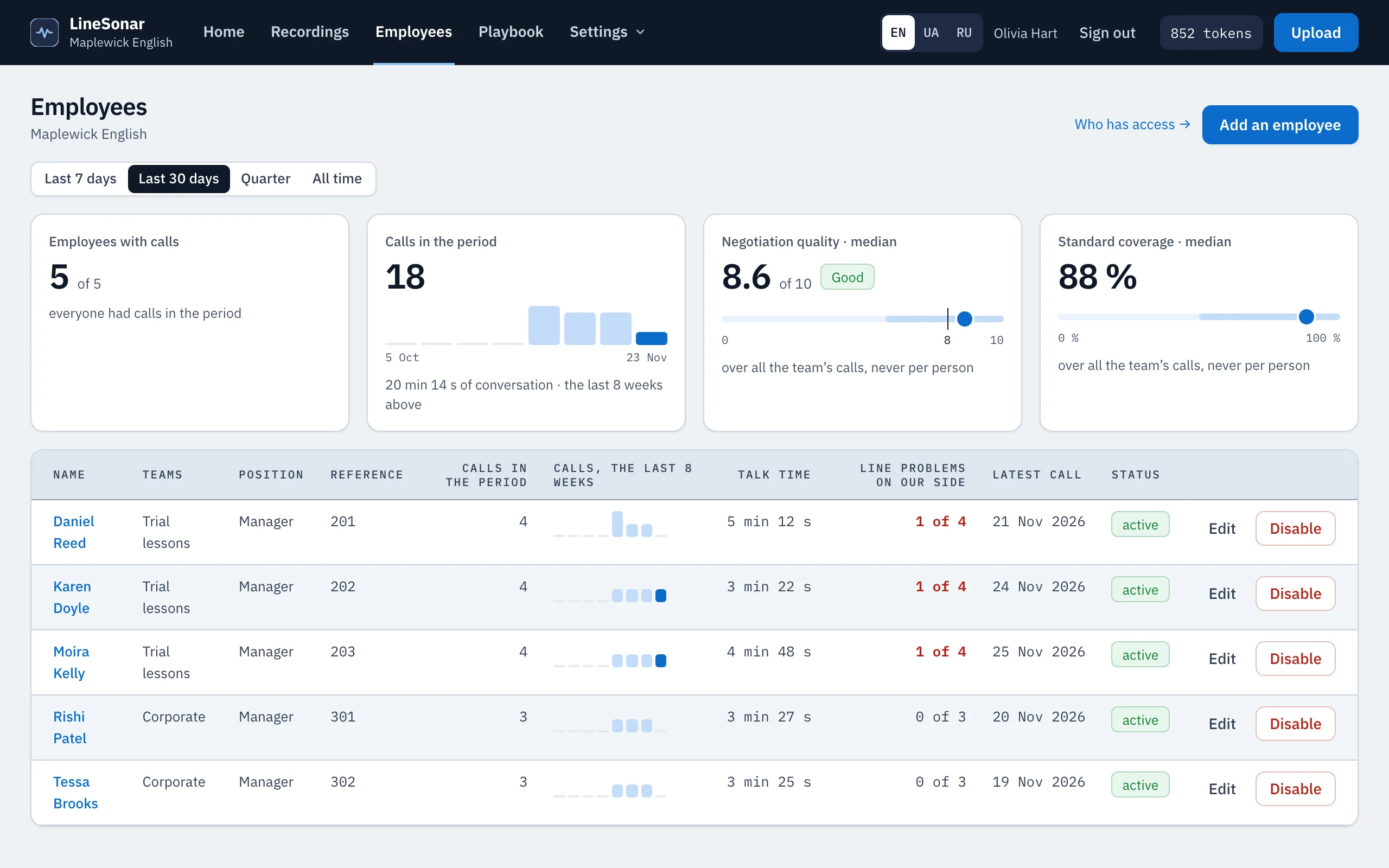
Here are the people whose calls you analyse, with each one’s calls, talk time, and line problems on your side. They do not sign in.
-
The tiles count the team’s calls in the period you pick, over all of them, never per person.
-
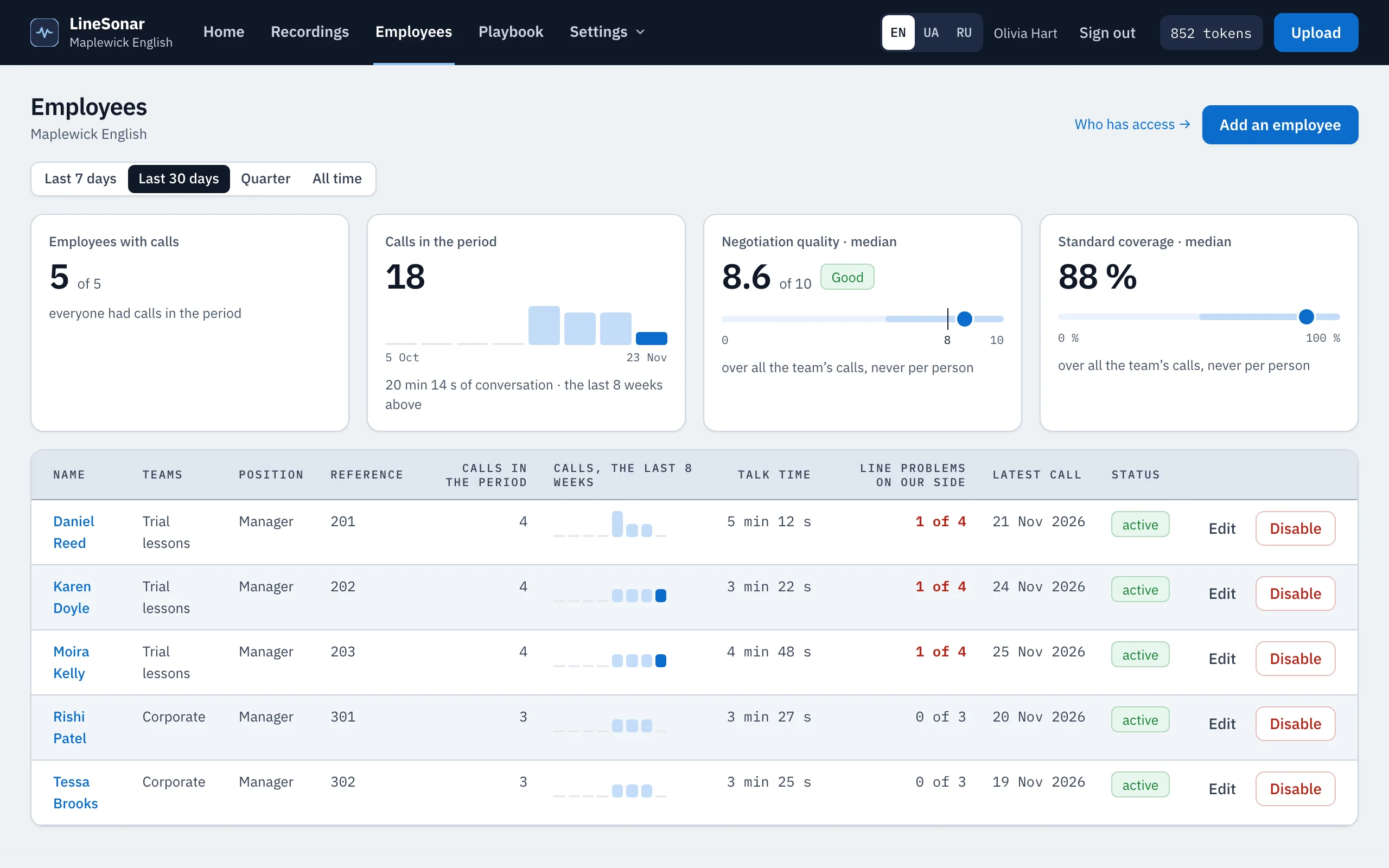
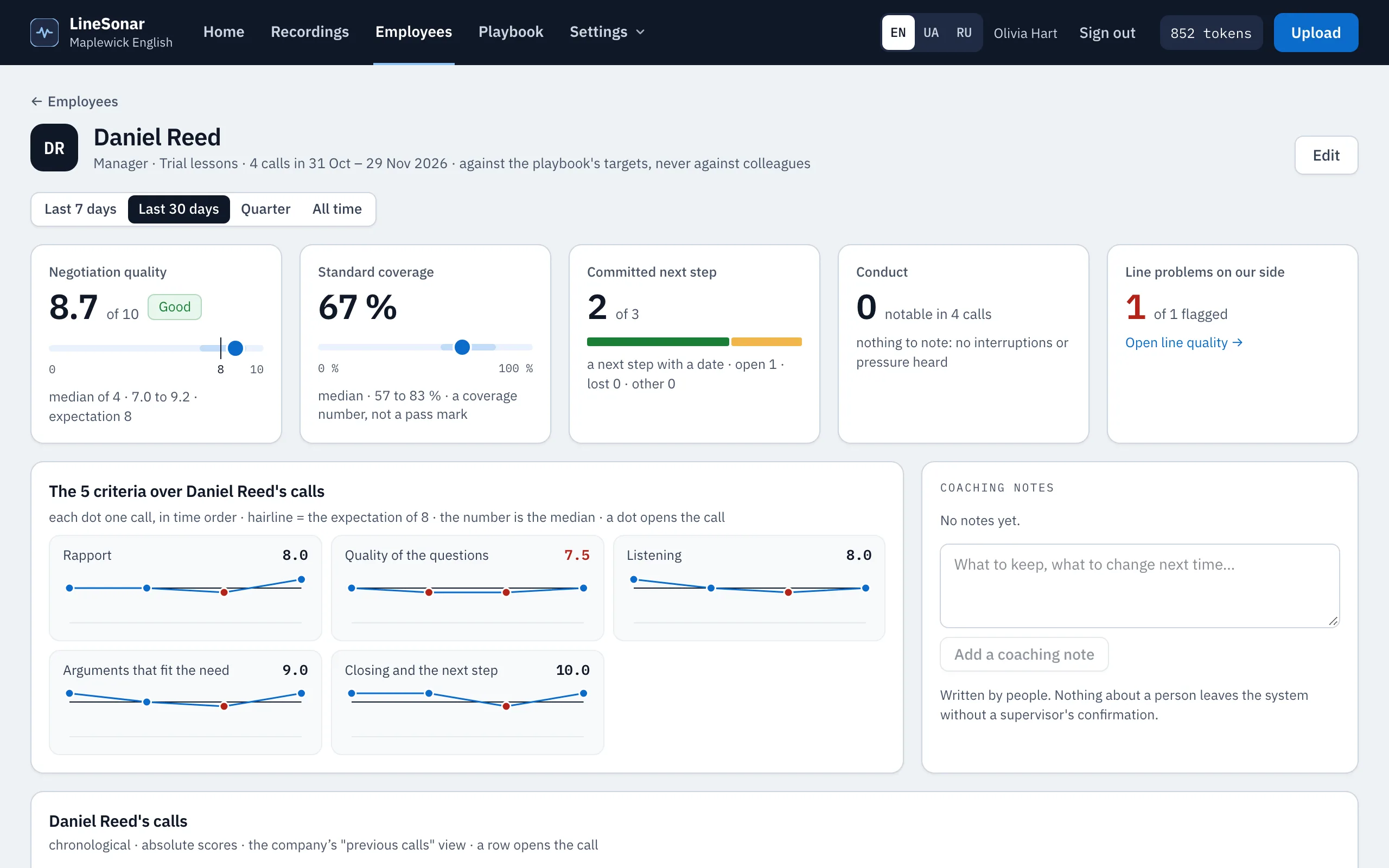
Click a name to open that person’s page.
-
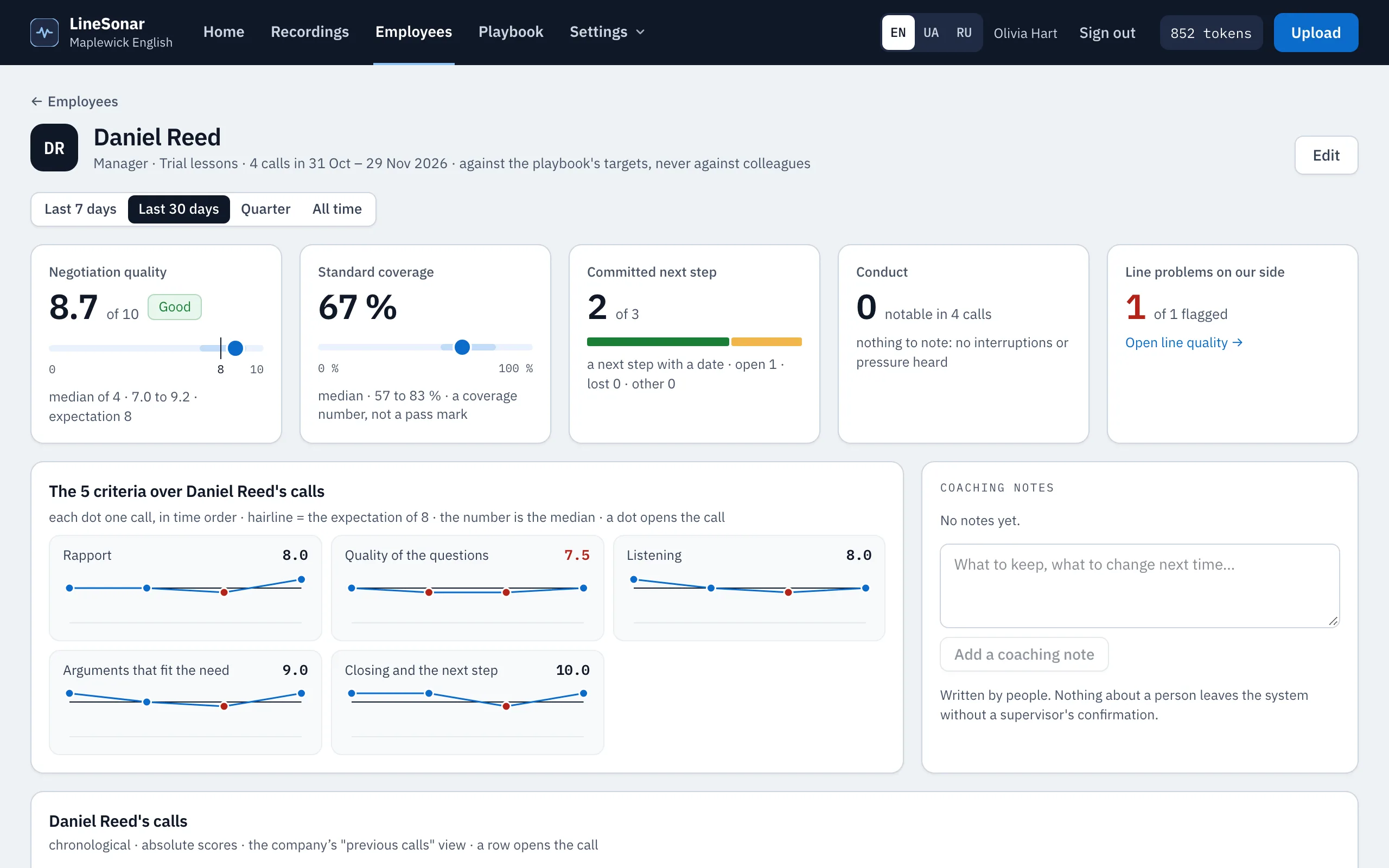
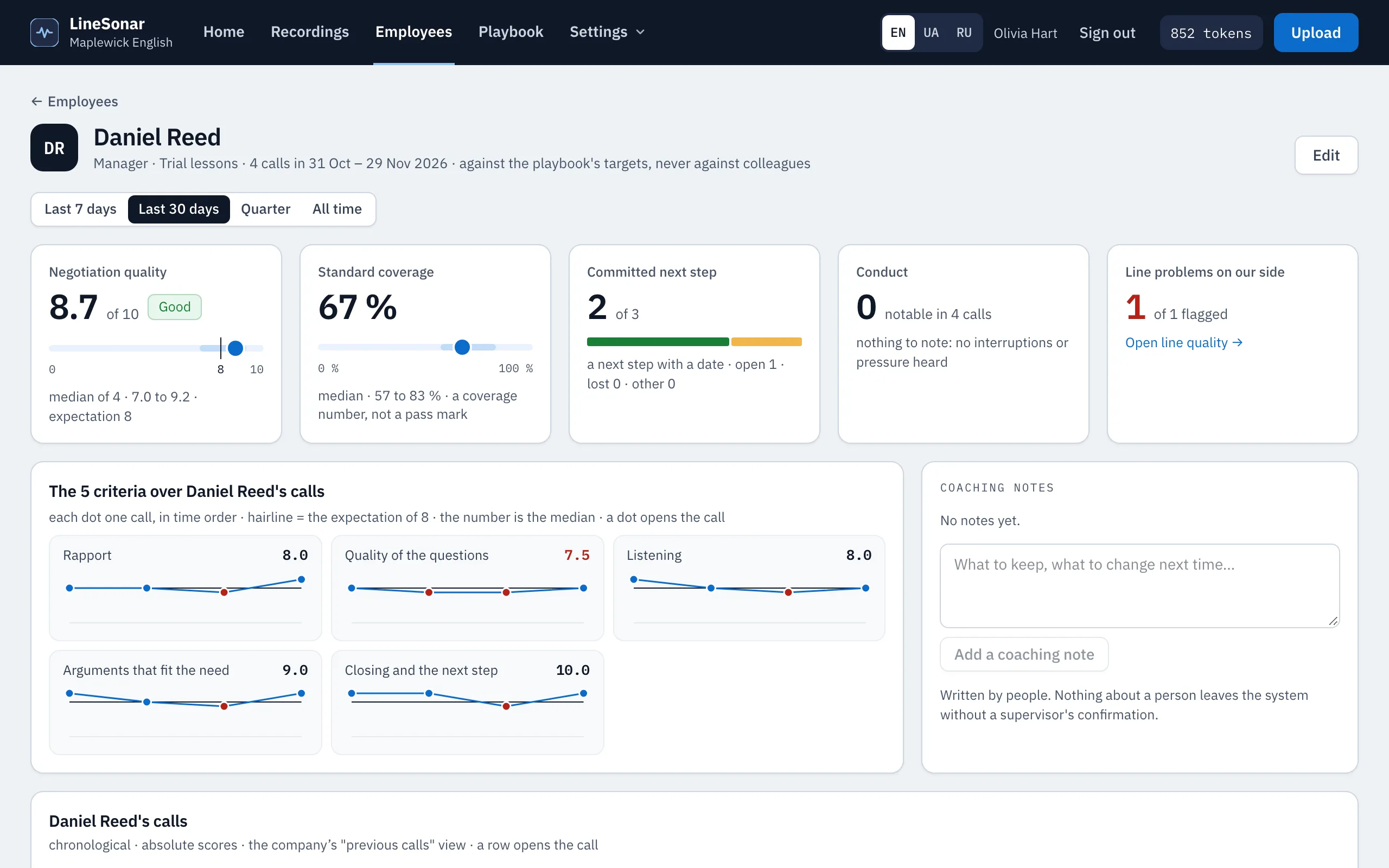
Their page measures them against the playbook’s targets, never against colleagues.
-
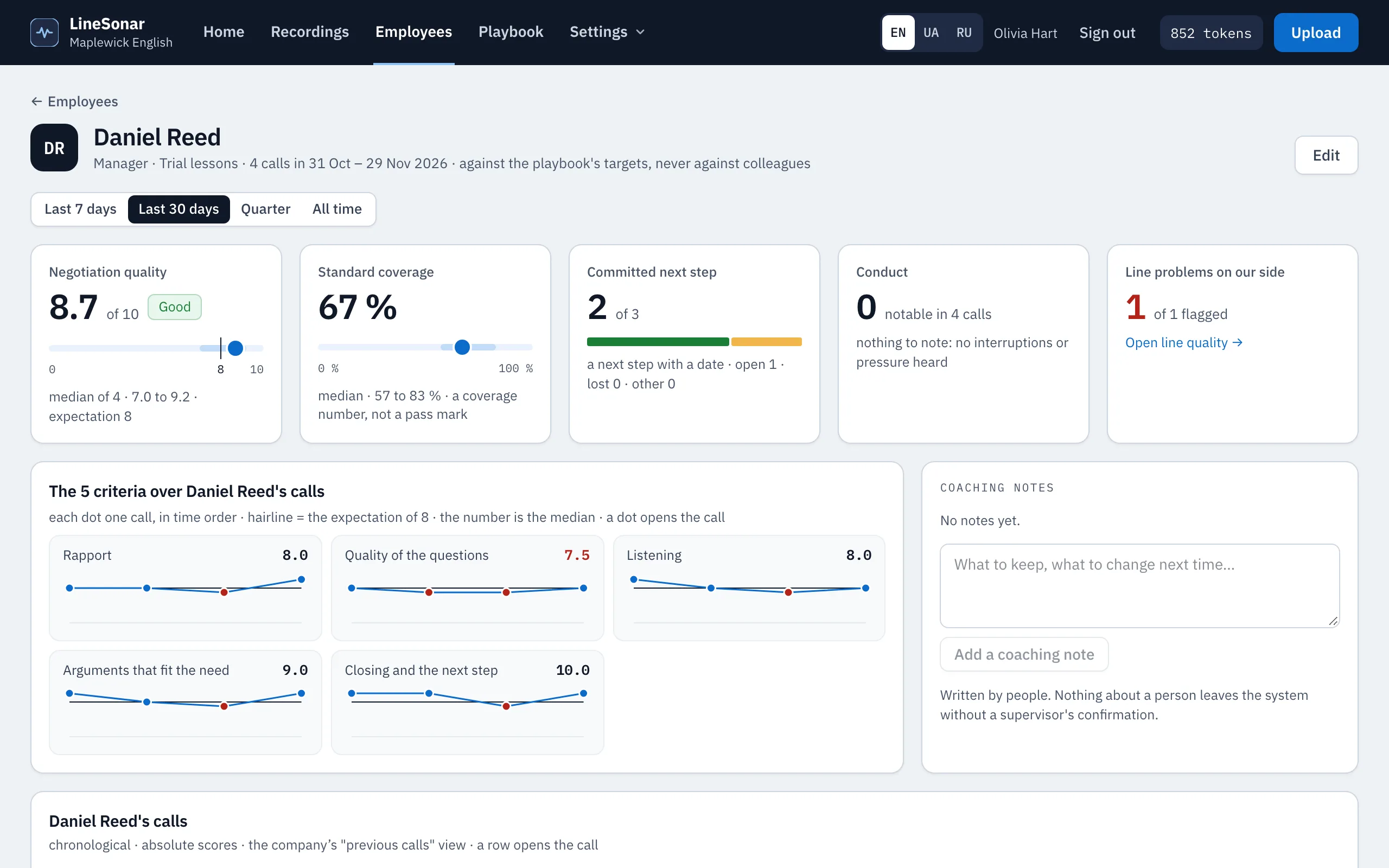
Each criterion shows their calls as dots, against the expectation of 8 out of 10.
-
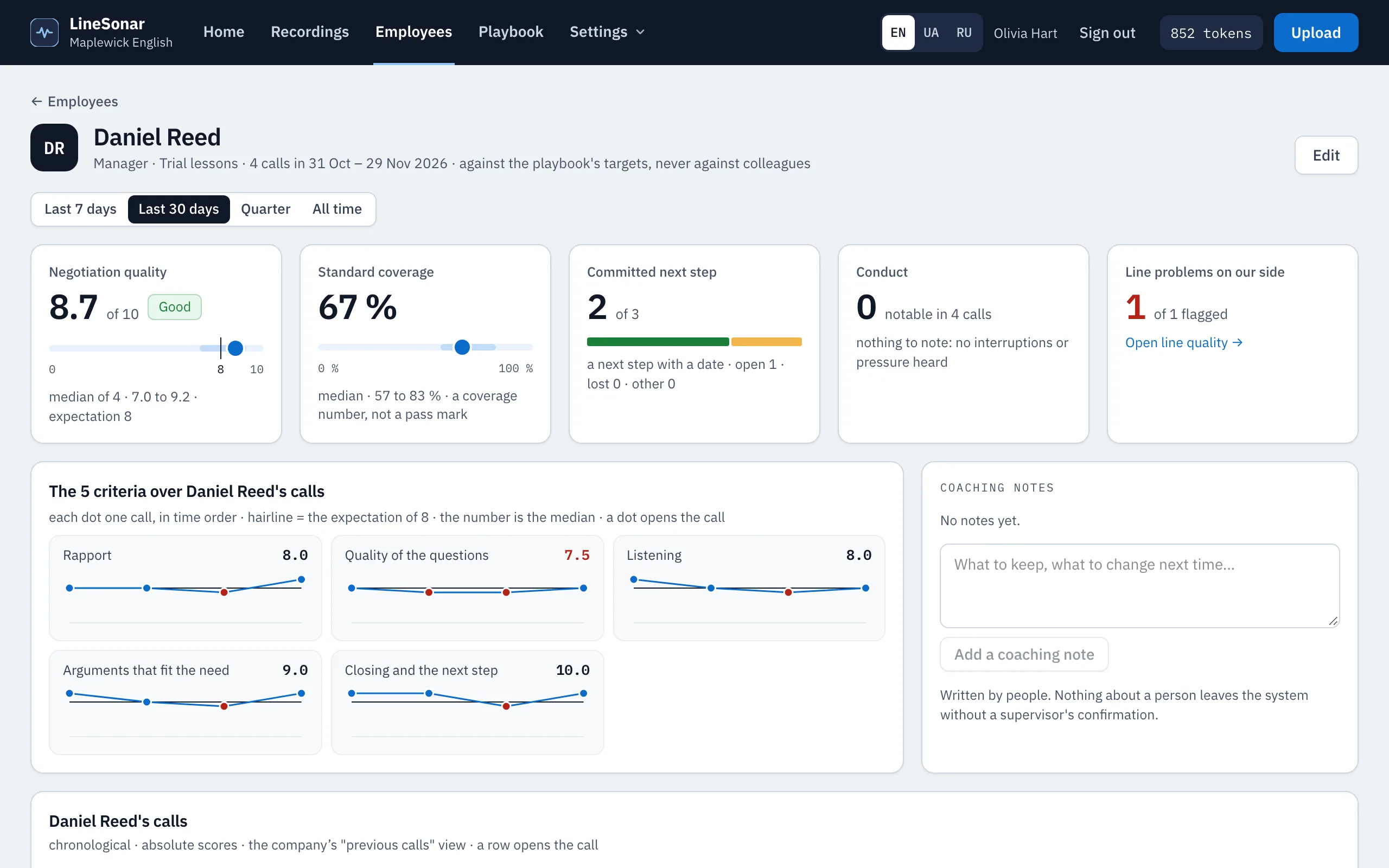
Coaching notes are written by people: what to keep, and what to change next time.
-
Their calls are listed below, and a row opens the call.
-
Go back to Employees to add someone.
-
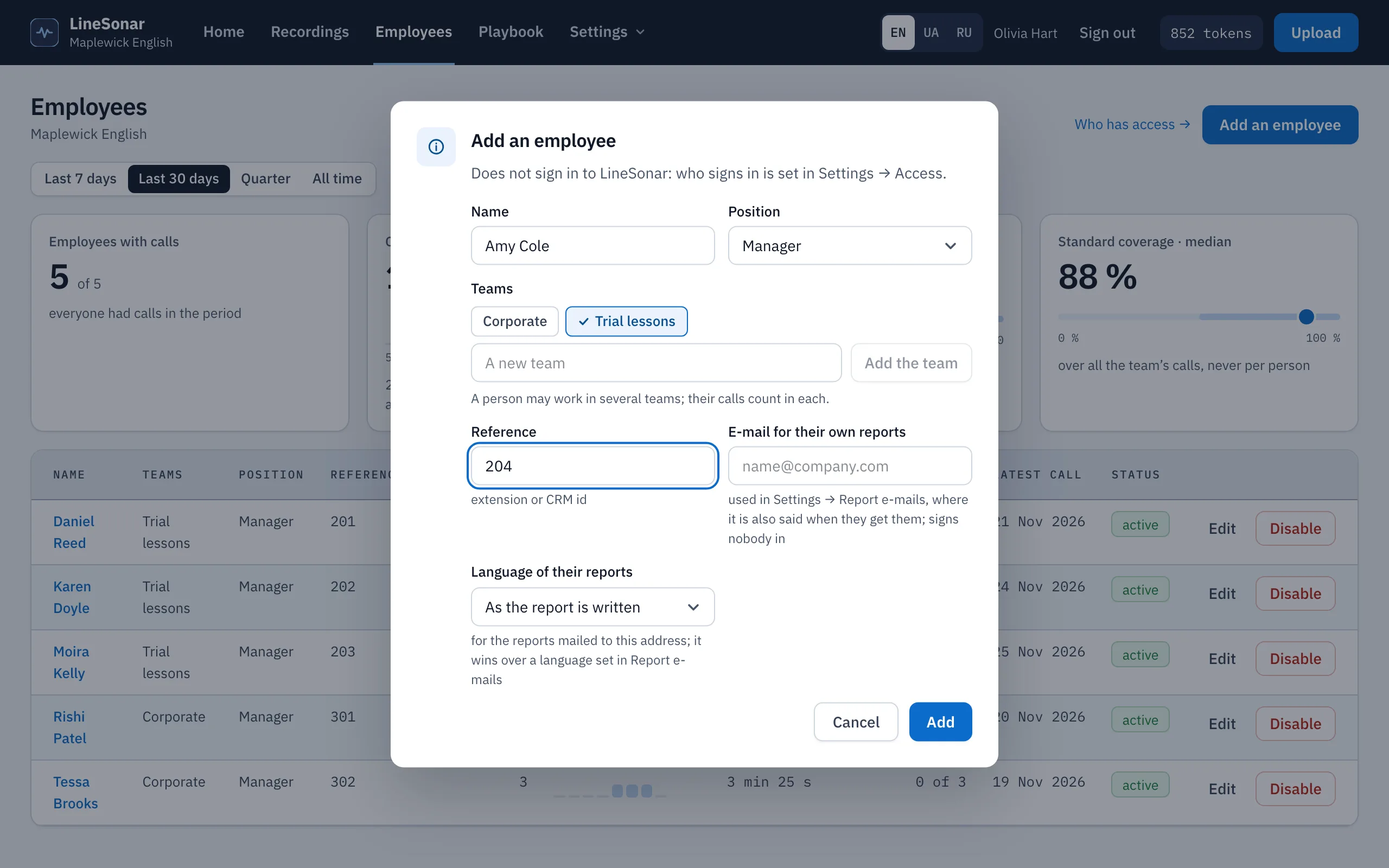
Click Add an employee.
-
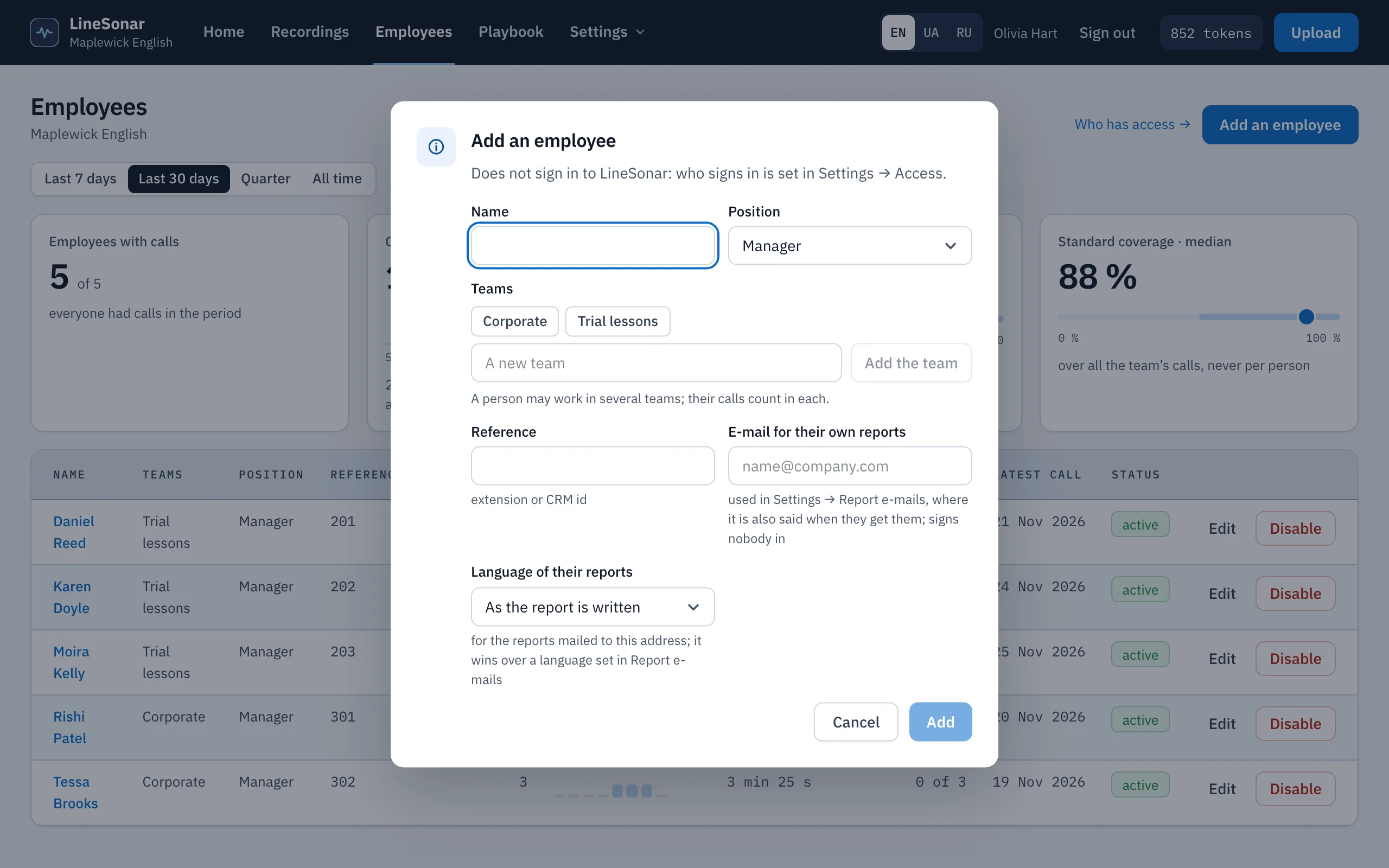
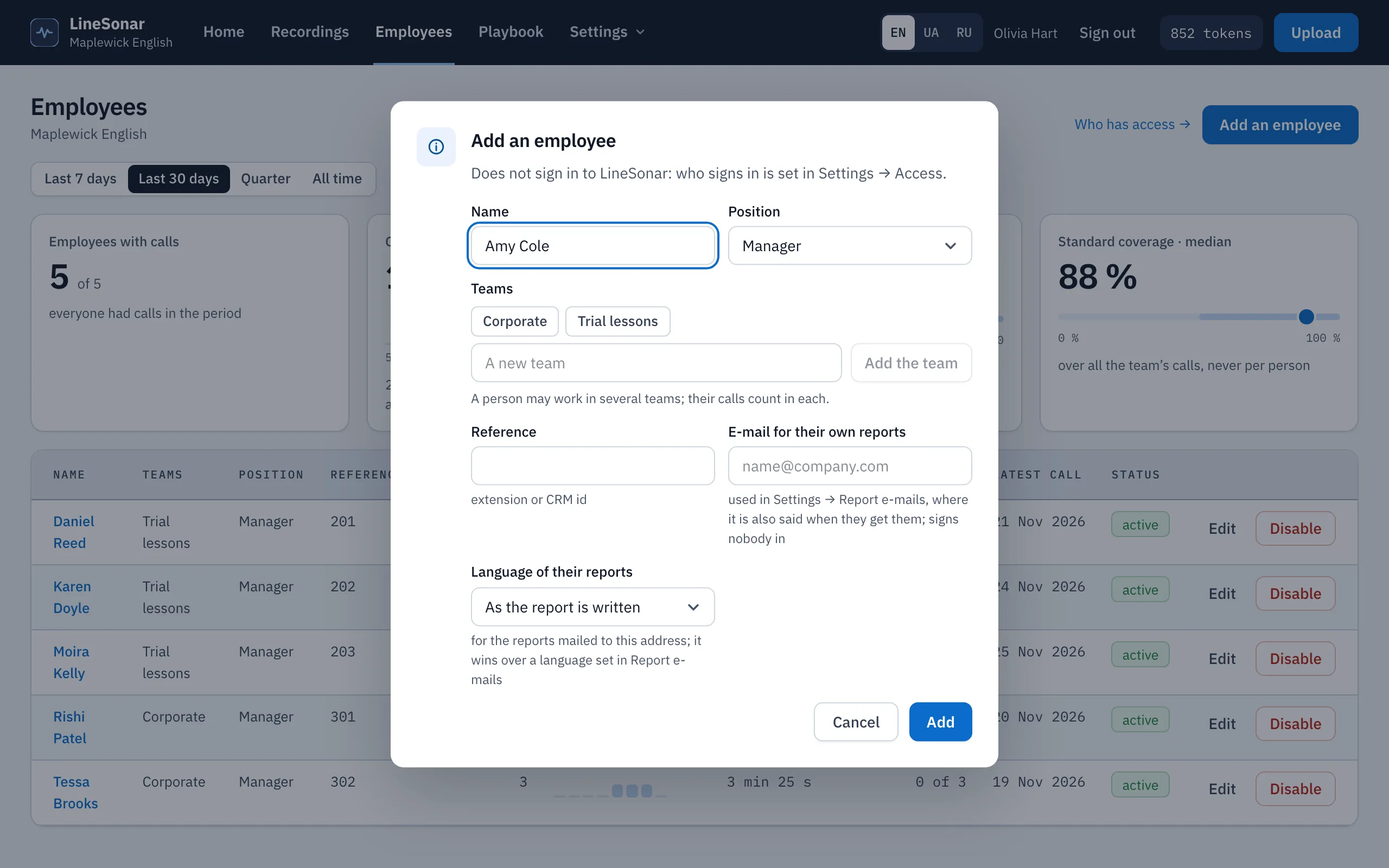
Type the name, and choose the position.
-
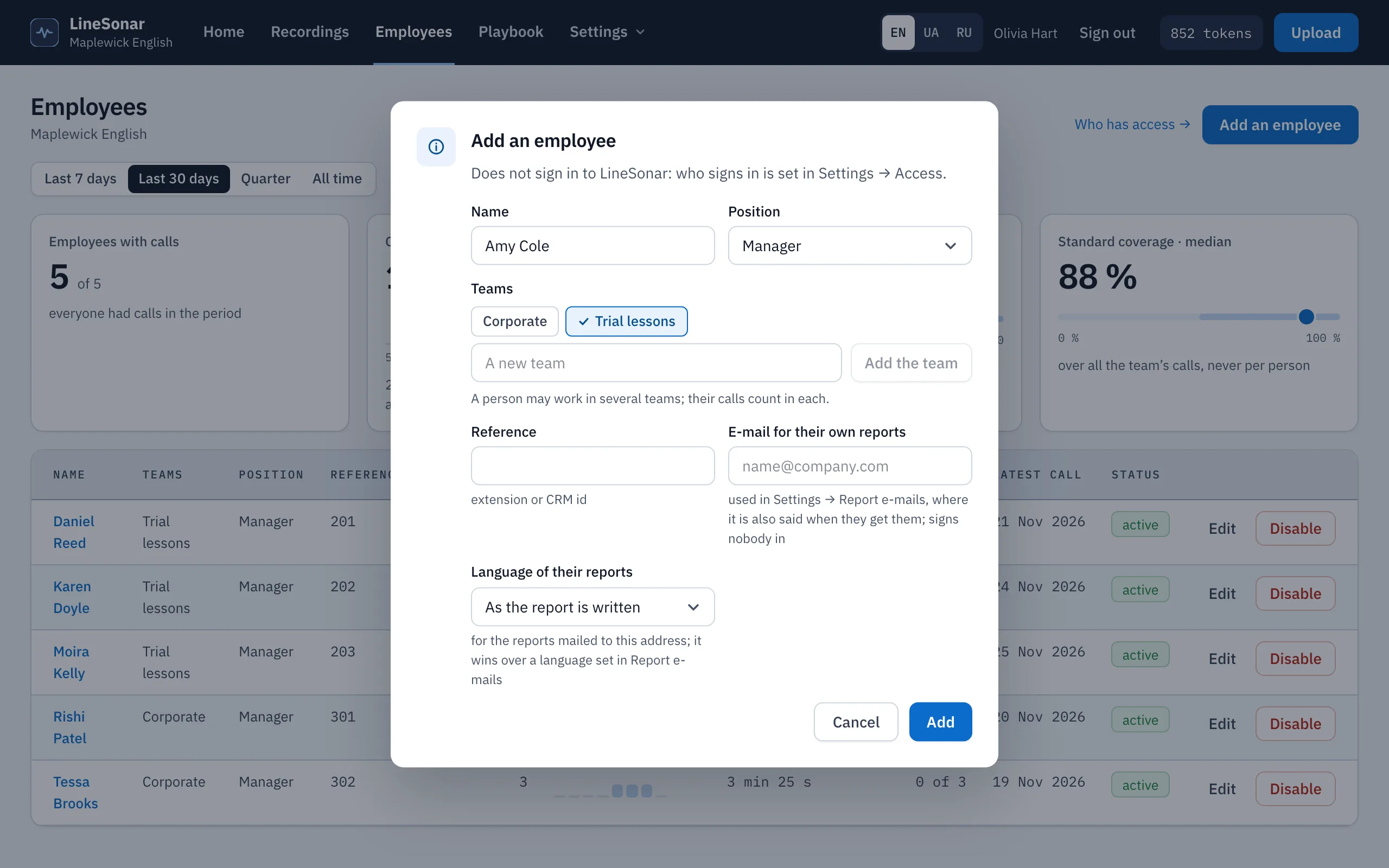
Pick their teams. A person may work in several teams, and their calls count in each.
-
Reference is their extension or CRM id. The owner or an administrator may add an e-mail, so that Report e-mails can send them their own reports.
-
Click Add. Who signs in to LineSonar is set apart, in Settings, under Access.